
Muse Your cloud workbench.

Chat with Muse, share files, or take control of its remote desktop. Follow up in WeChat when you step away.

NestYun Runtime Topology 3 isolated channels
Muse Browser + VNC Web chat and remote desktop control
Dedicated proxy exit Snapshot ready
Claude Code / Codex Native CLI PTY and local draft box
Persistent workspace Slash command menu
WeChat Approval Relay QR pairing and remote approvals
/ls & /use routing 24h push window
Control Plane HTTPS / WebSocket / PTY

Start with a message to Muse

Explore Muse chat and remote desktop below. For coding tasks, switch to the Claude Code or Codex terminal demo.

Workbench Release checks Interactive demo
CodexClaude CodeNative terminal
codexclaude

Find out why the latest test failed and suggest a fix.

  • Session test failed. Expected 200, received 204.
  • Status assertion found in session.test.ts.
Local draft / Commands Enter Send
MuseBrowser instance
You

Put together a checklist for the next release.

Muse
Release checklist
  • Verify sign-in and core workflows
  • Confirm the rollback steps
  • Assign a release owner
Muse browser instance
Release checklist
  • Verify sign-in and core workflows
  • Confirm the rollback steps
  • Assign a release owner

Take control to use the instance’s browser from the remote desktop.

View the illustrated guide
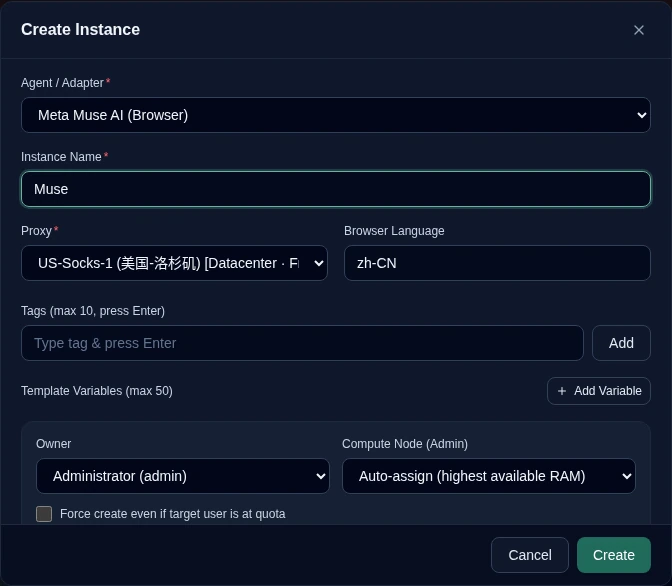
  1. Create an instance

    1. Select New Instance in the workbench and choose the Muse browser instance.
    2. Name the instance, select a proxy, and check the browser language.
    3. Select Create. Once the instance is running, open it from the conversation list.
    The instance creation dialog shows the Muse browser instance, name, proxy, and browser settings View full screenshot
  2. Chat with Muse

    1. Open a running Muse instance, type a question in the conversation, and select Send.
    2. To share supporting material, attach a file before sending your message.
    3. To use the browser directly, open the remote window and take control.
    A task drafted in the Muse message composer beside the Send button View full screenshot
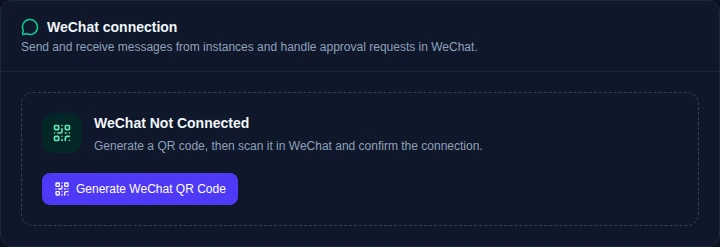
  3. Follow tasks in WeChat

    1. Open WeChat Connection in the sidebar and generate a pairing QR code. Scan it with WeChat and confirm the connection.
    2. After connecting, send /help to the bot in WeChat to open the 24-hour notification window.
    3. Set a default instance in Settings, or send /ls to list instances and /use followed by a name or number to switch.
    WeChat connection settings show the button to generate a pairing QR code View full screenshot
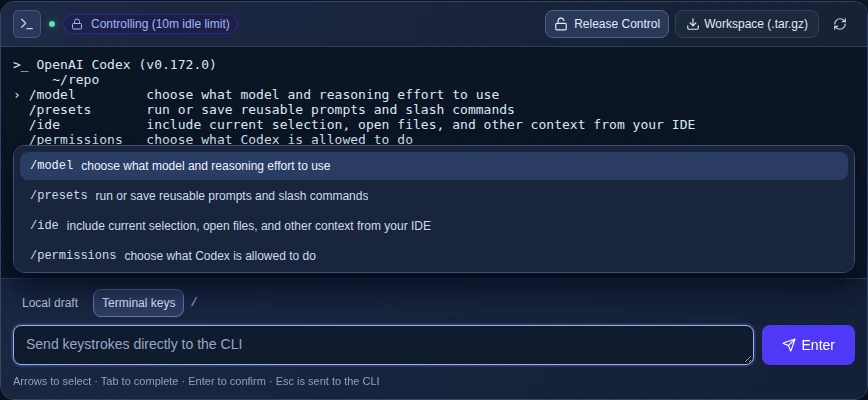
  4. Send a task in the native terminal

    1. Open a running Claude Code or Codex instance. The input box gains focus when control is available.
    2. Write a prompt in Local draft. Use Shift + Enter for a new line and Enter to submit the whole draft.
    3. Type / in an empty input to open the command menu. Choose with the arrow keys, press Tab to complete, then press Enter to confirm.
    The Codex terminal shows a slash command menu and matching options above the input box View full screenshot

Follow up in WeChat

Scan a code to connect WeChat and choose a default instance. Send messages, get replies and handle approvals from WeChat.

Muse WeChat

How are the release checks going?

Sign-in passed. The rollback rehearsal is waiting for your approval.

Approval pending: Run rollback rehearsal

Save your environment and pick up later

Browser instances that support snapshots can save their environment before pausing and restore it when they resume.

  1. Pause instance
  2. Save browser snapshot
  3. Resume instance
  • CLI workspace files persist across restarts.
  • Set a separate outbound proxy for each browser instance.